Monday, 1 October 2018

Angular Issue being faced


ERROR Error: Found the synthetic property @fadeInOut. Please include either "BrowserAnimationsModule" or "NoopAnimationsModule" in your application.

  1. Imported BrowserAnimationsModule in app.module.ts
import { BrowserAnimationsModule } from '@angular/platform-browser/animations';
  1. Added to imports in app.module.ts
imports: [
    BrowserModule,
    FormsModule,
    HttpModule,
    routing,
    Ng2SmartTableModule,
    TreeModule,
    BrowserAnimationsModule
  ]

ERROR Error: Found the synthetic property @fadeInOut. Please include either "BrowserAnimationsModule" or "NoopAnimationsModule" in your application.

Replaced MaterialModule with MaterialModule.forRoot()


TS2428: All declarations of 'WeakMap' must have identical type parameters.

  Use below dependencies in package.json     "lodash": "4.17.4",    "@types/lodash": "^4.14.110"

Sunday, 11 February 2018

Tenser Flow


1. Set up TenserFlow on system https://www.tensorflow.org/mobile/tflite/


Start Machine Learning using Tenser Flow


  • https://www.tensorflow.org/get_started/get_started_for_beginners
  • https://machinelearningmastery.com/introduction-python-deep-learning-library-tensorflow/
  • https://pythonprogramming.net/tensorflow-introduction-machine-learning-tutorial/
  • https://www.youtube.com/watch?v=uh2Fh6df7Lg
  • https://www.youtube.com/watch?v=2zWSr-3gkWY

TenserFlow Wrapper for Java

  • https://www.tensorflow.org/install/install_java

Learn Python 


  • https://www.youtube.com/watch?v=Vxw1b8f_yts
  • https://www.python.org


Download Python 

  • https://www.python.org

Machine Learning can be categorized into three parts

  • Supervised Learning
  • Unsupervised Learning
  • Reinforcement Learning

Wednesday, 15 February 2017

    Creating Circular referencing in Hibernate


There are situations when we need to create tree json. For that we need to create self join on the same Entity to make Parent child relationship on same entity.

Following is the  example:

            @Entity
            @Table(name = "tree")
             public class Tree implements Serializable {

                  private static final long serialVersionUID = 663408095532480033L;

                  @Id
          @GeneratedValue(strategy=GenerationType.AUTO)
                  @Column(name="id")
                   private String id;

                  @Column(name="fruit")
                  private String fruit ;

                 @ManyToOne
                 @JoinColumn(name="child_id", nullable=false)
                  private Tree rootId;

}

When you will try to retrieve the following entity you will get Child First and inside it will get parents.

In order to retrieve parent first and then inside get childs following should be the structure.


            @Entity
            @Table(name = "tree")
             public class Tree implements Serializable {

                  private static final long serialVersionUID = 663408095532480033L;

                  @Id
          @GeneratedValue(strategy=GenerationType.AUTO)
                  @Column(name="id")
                   private String id;

                  @Column(name="fruit")
                  private String fruit ;

                 @ManyToOne
                 @JoinColumn(name="child_id", nullable=false)
                  private Tree rootId;

                 @OneToMany(mappedBy=rootId)
                 private List<Tree> children;

           }

Here when you will return the entity to frontend user issue of infinite json refrencing will come in order to resolve the issue need to add json annotations in entity that is following :

            @Entity
            @Table(name = "tree")
             public class Tree implements Serializable {

                  private static final long serialVersionUID = 663408095532480033L;

                  @Id
          @GeneratedValue(strategy=GenerationType.AUTO)
                  @Column(name="id")
                   private String id;

                  @Column(name="fruit")
                  private String fruit ;

                 @ManyToOne
                 @JoinColumn(name="child_id", nullable=false)
                 @JsonBackReference
                  private Tree rootId;

                 @OneToMany(mappedBy=rootId)
                 @JsonManagedReference
                 private List<Tree> children;

           }

Enitity would return the  following Json:

[
  {
    "id": "1",
    "fruit": "ROOT",
    "child": [
      {
        "id": "2",
        "fruit": "CHILD",
        "child": [
          {
            "id": "3",
            "fruit": "CHILD1",
            "child": []
          }
        ]
      }
    ]
  },
  {
    "id": "4",
    "fruit": "Root",
    "child": [
      {
        "id": "5,
        "fruit": " Root Child 1",
        "child": [
          {
            "id": "6",
            "fruit": " Root Child 2"
            "child": []
          }
        ]
      }
]

Hope this will help happycoding. :)

Wednesday, 19 October 2016

HOW TO CREATE USER AND ROLES  ON JASPER SERVER


To access reports on JasperServer we need to have a user account which includes ID and Password.
Roles are created to determine which user can access which repository.User can have multiple roles.

An administrator can create roles and users on JasperServer and assign roles to user.Set roles permission on repository .


 Creating Roles

 Following are the steps to create roles :

 1.) Login to jasperserver admin account.

 2.) Select manage role then click on add role.

 3.) Enter the desired role name.


If existing role is selected then users assigned to the role gets listed out.


Creating Users

On Home page go to Manage select add roles.

Following are the steps to create new users .

1.) On Manage Users page click Add User.

2.) Enter the desired UserName,UserPassword,UserId,ConfirmPassword and ResetPassword.


Click the enable user check box.

3.) Click on Add User Now the User will appear in the User list.

4.) Repeat the steps for adding new Users.

Assigning Users

Following are the steps to assign users:

1.) From Home Page go to Manager -> Users.

2.) Select the desired User from the list and click on edit button.


3.) After clicking on Edit in the ROLE section two panes will open up. ROLES AVAILABLE and ROLES ASSIGNED.
    Select the ROLE FROM Available and click on Arrow if you want to assign the role.
    Select the ROLE FROM Assigned and click on Arrow if you want to deassign the role.


4.) Click on Save .Repeat the steps to add additional users.


Hope the above article helps. :)


Monday, 11 April 2016

               Lock time seconds issue in JasperServer


When we have a report deployed on JasperServer holding millions record .While exporting this report it takes more than 90 seconds to export which is the default time to load in Jasper in this case Error: Unable to acquire conversation lock after 90 seconds comes.
 
 
1.) To Resolve this issue we have to change internal configuration settings of Jasper i.e xml files.
 
 
2.) Open WEB-INF/jasperserver-servlet.xml  in Apache-Tomcat folder.Make change in follwing line :
 
<property name="lockTimeoutSeconds" value="90"/>
 
 Change the value field here
 
 
3.) Save changes and restart JasperServer.

Tuesday, 13 October 2015

How to resolve issue Drop ,Delete ,Alter commands taking long time?


Why this issue arises ?

This is probably due to Metadata locking .It is most common to see table gets struck in "Waiting for Metadata Locks". ..It comes basically due to some uncommitted Transactions.

Solution

In order to resolve this first we should wait for sometime for transaction to complete that might be using that table.If it is taking very long time then following are the steps to resolve this :

1.) Login Mysql 
     mysql -u root -p 
     ******

2.) RUN  

     Show Full Processlist.
     (Here you will get list of transactions that are creating lock on other transactions )

+-----+------+-----------+-------------------+---------+------+-------+------------------+
| Id  | User | Host      | db                | Command | Time | State | Info             |
+-----+------+-----------+-------------------+---------+------+-------+------------------+
| 404 | root | localhost | example           | Sleep   | 297  |       |                  |
| 410 | root | localhost |                   | Query   | 0    |       | show processlist |
+-----+------+-----------+-------------------+---------+------+-------+------------------+
 
Here process 404 is creating lock on other transactions.

3.) kill process 404 by running:

      kill 404

4.) If above process kill doesn't works then you can go for killing other processes as mentioned in  Step 3.

5.) Now try executing Drop ,Delete,Alter or any command it would now work correctly.


Above approach is a better approach instead of MySQL server restart.


Hope the above solution works .Looking forward for your questions and suggestions ..  :)

Tuesday, 18 August 2015

Create Routines in Jasper ETL  


What are Routine ? 

Routines are habits which do not change and are repeated every time . In Jasper ETL Routines are Java Methods or reusable code that are required generally in Jobs for manipulating data.

Below are the list of default System Routines present in Jasper ETL.


Creating Custom/User Defined Routines   

There could be a point when we would require to create our own methods and classes to transform data in our jobs.In that case we could create our own Routines also known as User Defined Routines.
Below is the procedure to create user defined routines :-

a.) Right Click Routines inside Code and click on Create Routine.

  b.) Normaly Create a Java Class in any IDE or Notepad which ever is better for you.

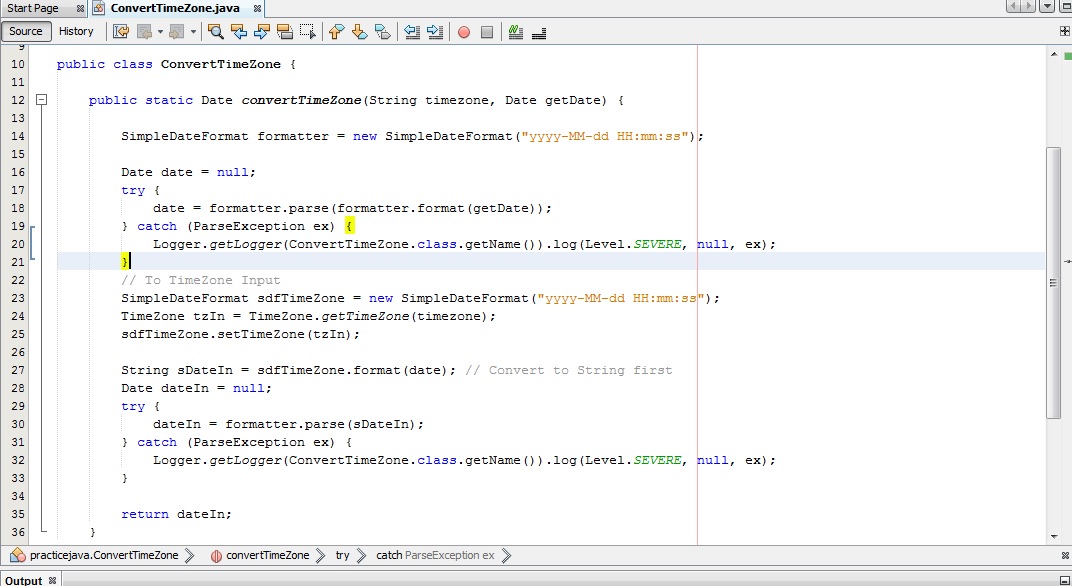
       For e.g Here is the code I first wrote in NetBeans to convert any timezone to UTC

c.) Paste the same code inside the Routines window opened and save it.


d.) No you could continue to use this method in your jobs.Inside Categories select User Defined you will see the method created by you.


NOTE : Always declare custom  Methods as Public Static so that it could be accessed publicly and shown inside User Defined option.

Hope you find this article helpful :) .

Friday, 13 February 2015

Scheduling Export of Reports to FTP Server from JasperServer

In this article I would like to demonstrate How we could export reports to a ftp server in Synchronization with Scheduling a job.
As there are client requirements that reports should be regular bulk export of data to the site or FTP server ,JasperServer has provided options that by Scheduling Job we could either mail reports to user send notifications to clients/user or could directly export reports to a FTP server or could choose both mailing and export of reports simultaneously as in my case.

First I would show you how we could export reports to an FTP server 

Preconditions :
1.) Working JasperServer either Community or Pro Edition
2.) There should be a report on JasperServer for Scheduling Job


Follow the following Steps to Schedule Job:

1.) Right Click on Report and Select Schedule Option.
 
2.) Click on Create Schedule.

3.) Under Schedule there are various options like 
  •   Schedule Start
  •   Recurrence Type
    Under Scheduled Start :  Selected  immediately and Under Recurrence Type : Selected Calender


4.) Under times select Hours and Minutes,Here I have chosen 0-23 for running every hour and 0 in minutes for running at start of every hour. 


5.) Select Output Options.

6.) In Output Options under Formats Select PDF Format and Enters FTP Details
      FTP Details :
  •      Server
  •      Directory
  •      UserName
  •      Password
     And Click on Test Connections to verify whether connection is successful or not


7.)  Final Step Click on Submit and Check the Scheduled Transfer of Reports on FTP Server.


Now the Scheduled export of reports on FTP server would work successfully .

I would also share video with all regarding the Steps.Hope you would find this article helpful ,

Thanks :)

Amit


Thursday, 4 December 2014

JasperSoft ETL

Lets First discuss about what is ETL.ETL stands for Extract Transform and Load.These terms refers to processes in Database and Data Warehousing that are combined into one tool to pull data from one database transform it and load it to another database .

  • Extract: Extracts data from homogeneous or heterogeneous data sources or databases
  • Transform:It is the process of converting extracted into desired form.Transformation occurs by using rules or look-up tables or by combining the data with other data.
  • Load :It means loading data into target database.


We need to install JasperSoft Etl (One of the tool to design jobs and run ETL).You could download  JasperSoft ETL from  the JasperSoft Community site http://community.jaspersoft.com/project/jaspersoft-etl/releases.

After you open JasperSoft ETL and create a project name , Here I have chosen project name as TestETLProcess .Window that would show-up is


Below are the steps to create ETL Process:

1.) First we need to create a job under Job Designs 

      a) Right click on Job Designs 
      b) Select Create Job
      c) Write Job Name and click Finish .


2.) Create DB connection of source db from where tables needs to be processed.
  
   a) Expand MetaData
   b) Then Click on DbConnection 
   c) Create the name of Db Connection and click on next.


3.) Select DB type For e.g I have selected mysql and fill rest of the requirements.


4.) Click on check connection to check if connection is successful or not . If the connection is successful then click finish.

5.) Make another Db connection  of the target database where we want to transfer database.

6.) Now we would retrieve schema of Source Db .
 
      a) Right click on source db (In my Case it is CouponDb ) select retrieve schema.
      b) After you click on retrieve schema the following window would pop-up.


    c) Click on Next.
    d) After you click on Next following window would popup in which click on Select All .
    
    e) Click on Next and then Click Finish.

7.)  Under CouponDb click on Table schemas and drag the tables which you want to transform and load on Target Database.

8.) I have selected Coupon and CouponCode tables and dragged them to Job window and selected tMySqlInput option.
    

  9.) In Palette on Right under Processing select tMap and drag it in job window.

 10.) Right Click on Coupon and CouponCode and select Row->Main and drag the line to tMap_1.
    

 11.) From Palette on right click on Databases->Mysql select tMysqlOutput .

 12.) Right click on tMap select Row->Main drag it to tMySqlOutput_1 .Select the name of row which you want (I have selected transform) .
  

13.) Double click tMap component.Drag coupon_code_id from coupon table to id column in couponcode table ,to make sure that it is a unique match.


14.) Now we will select columns we want to get and drag it to the right at transform table.


15.) Click Ok and close the component.

16.) Double click tMySqlOutput and fill the credentials of database and table name you want to set .
        In the action select Create Table if not exists and in Action on Data select Insert or Update.


    17.)Double click on Edit Schema to check the schema .


   18.) Click Ok and close the window.Now we will run the ETL and check Dataflow .

   19.) Press F6 to run ETL process and check dataflow .


Hope the article would be helpful .I would be looking forward to your comments suggestion and feedback.  ......Thanks :)

Tuesday, 14 October 2014

Creating user using JasperServer Rest API

First let us have a brief idea about REST(Representational State Transfer) web service is an alternative to RPC (Remote procedural calls) and webservices (SOAP, WSDL, et al.).REST relies on a stateless ,client-server cacheable communications protocols and in virtually in all cases HTTP is used.


What is REST WebService ?   

REST is a light weighted alternative to WebServices like other web services it has features like:
  • Platform Independent
  • Language Independent
  • Standards Based
  • Easily be used with firewalls
What is Client ? 

Client calls services of server by sending request to the server in the form of URL and receiving response in return.Client bascially is a interface that passes parameters in the form of JSON,TEXT/PLAIN,XML etc.

For more info on rest services visit : 

How to create user using Jasper-rest-api ?

To create a user account we need to put all details of user in the descriptor and pass it in descriptor,and include it in a PUT request to the rest_v2/users service, with the intended user ID (username) specified in the URL

To create a user account the userId must be unique if the userId is not unique then the already existing user will be edited.

There are two urls First is for commercial version and second is for community version.

Method : PUT
URL:

http://<host>:<port>/jasperserver[-pro]/rest_v2/organizations/orgID/users/userID

http://<host>:<port>/jasperserver[-pro]/rest_v2/users/userID

Content/type:application/json or application/xml

The descriptor that is passed needs to contain the following details:
{
“fullName”:”XYZ”,
“emailAddress”:”x@y.com”,
“enabled”:false,
“password”:”mypassword”,
"externallyDefined" :false,
“roles”:[{“name”:”ROLE_MANAGER”}]
}

Below are steps on how to create a rest client for creating users on jasper server in java:

1.)  Open net beans under File option File->NewProject Select Java and Java  WebApplication Name the project (I have chosen project name JasperClientTest).


 2.) Add jersey-client jar file,jersey-core jar file,jesey-server jar file,jersey-servlet jar file,jersey-json jar file ,asm jar file by right clicking on libraries folder and selecting Add Jar option.


 3.) Creating and Configuring a Client Instance :
        
            public static void main(String[] args) {

               ClientConfig config = new DefaultClientConfig();
               Client client = Client.create(config);

           }

 4.) Creating a web resource instance:
        
          public static void main(String[] args) {

            ClientConfig config = new DefaultClientConfig();
            Client client = Client.create(config);
            WebResource service = client.resource(getBaseURI());

        }


       private static URI getBaseURI() {

          UriBuilder.fromUri("http://localhost:8086/jasperserver").build();

      }


5.)Passing Authorization If the server holds login and password . Here I will show an example of basic authorization 
       Authenticator.setDefault(new Authenticator() {
       @Override
        protected PasswordAuthentication getPasswordAuthentication() {
        return new PasswordAuthentication("jasperadmin","jasperadmin".toCharArray());

}


 }); 

6.)Prepare a json data having user details in it. 

      String input = "{\"fullName\":\"XYZ\",\"password\":\"jasperadmi\",\"emailAddress\":\"x@y.com\",\"tenantid\":\"Ag\",\"enabled\":true,\"externallyDefined\":false,\"roles\":[{\"name\":\"ROLE_USER\"},{\"name\":\"ROLE_VOUCHER\"}]}";

JSONObject jObject  = new JSONObject(input);

7.) Create a client response with put request passing url to call jasper User Service and   make its type "application/json"

ClientResponse response  =service.path("rest_v2").path("users").path("XYZ").type("application/json") .put(ClientResponse.class,jObject);
 
 URL that would be made is :localhost:8080/jasperserver/rest_v2/users/XYZ

8.) To receive output from server write 

    (a) In case the user is not created

           if (response.getStatus() != 201) {
               throw new RuntimeException("Failed : HTTP error code : " 
                 + response.getStatus());
           }

    (b) In case the user is created

          System.out.println("Output from Server .... \n");

          String output = response.getEntity(String.class);

          System.out.println(output);


 9.)  Jasper Server will return a Status of 201 if the user is created,200 if the user is found
(If user is already present in put request edits user details),400 status indicates there is some  syntax  error  in json data that we are passing,401 status indicates authorization 
error like wise there are other status which you could read from here)


10.) You can download the complete Netbean project of rest client from here .


Before running the project customize json and websource url according to your requirements


I would like your comments and feedback thanks :)


Sunday, 28 September 2014

Customizing PieCharts in Jasper Reports 


Pie charts are a form of an area chart that are easy to understand with a quick look. They show the part of the total (percentage) in an easy-to-understand way. Pie charts are useful tools that help you figure out and understand polls, statistics, complex data, and income or spending. They are so wonderful because everybody can see what is going on. Use them to make excellent visual displays that explain data to other people-- in school projects, work presentations or pitching sales figures to clients. 

Here in this tutorial I will show how to customize PieCharts:

1. ) First drag charts into the report from palette window.

2. ) In the charts window select 2d pie chart.

3. ) Default view of pie chart


   4. ) Remove legend and labels by unchecking Show Legend and Show Label from PieChart properties tab .


5. ) Now the pie chart would look like this.


 6.) Now I will show you how to further customize pie chart , we will create a java project( I have creatred a java project named CustomizedCharts ).

 7.) Add com.mysql jar file , jasperreports jar file , jcommon jar file , jfreecharts jar file.


  8.) Here is the customize code to denote one pie with value January separately.

   9.) Build the project and add classpath to Ireport by clicking Tools->Options->ClassPath->Add Jar


   10.) Now Add customizer bar chart by selecting customizer class option.
   

   11.) After putting customized code the chart would look like this.

  12.)  To create full exploded chart view. Here is the code to create full exploded view of piechart


   13.) After applying this code it chart would look like


    Hope this article would be helpful.
    Please put your views or questions or suggestions below, I will be more than happy to hear them..

Monday, 15 September 2014

Customize JfreeBarChart

A bar chart or bar graph is a chart with rectangular bars with lengths proportional to the values that they represent.We need charts to represent data in pictorial format so that it becomes more appealing.

We have chart options present palette but they have very limited customization properties available therefore we need customizer classes to represent graph in a better format.

In this article I will show how to customize chart both by using customization properties in ireport
and through customizer classes.

Now how to create charts:

1.) Drag chart from palette window into detail band or summary band depending upon requirements.
(I have used chart in summary band).

2.) From the Palette choose bar chart option.

3.)Choose Bar chart Series color (I have chosen grey as series color)


4.)Default view of Bar Chart.
Default View BarChart

5.)Remove legend by unchecking ShowLegend,Tick-marks and Tick-labels shown in red tick mark.
Customize Bar Chart


6.)View Of BarChart.
Customized Bar Chart


7.) Now I fill Show how to further customize bar chart remove X-axis and Y-axis grid lines.
In order to further customize bar chart we will create a java project(I have created Project named CustomizedCharts).

8.)Add com.mysql jar file , jasperreports jar file , jcommon jar file , jfreecharts jar file.
Jar files required

9.)This is the customized chart code to remove X and Y horizontal and vertical gridlines.
Customizer Classes

10.)Build the project and add classpath to Ireport by clicking Tools->Options->ClassPath->Add Jar.

11.)Now Add customizer bar chart by selecting customizer class option.


12.)After implementing cutomization class the bar chart looks like.


13.) Now we will make customized bar renderer class to show maximum length bar with green color and minimum bar chart with blue color.We will add following code in BarChart Class shown
in 9th point.

//Set the Customized Bar Renderer
CustomizedCharts renderer = new CustomizedCharts();
chart.getCategoryPlot().setRenderer((CategoryItemRenderer) renderer);

14.)Following is CustomizedCharts Class code that implements BarRenderer
15.)View of cutomized chart showing maximum with green and minimum with red color.

Hope this article would be helpful.

Please put your views or questions or suggestions below, I will be more than happy to hear them..